Reading Definitions
A step-by-step walkthrough of the Cluster Definitions dashboards.
Download PDF VersionThe Cluster Definitions dashboard presents the structure of each cluster, based on either occupations in relation to skills and knowledge areas (as defined by O*NET), or industry sectors. You can search by cluster to see which occupations or industries it contains, or reverse-search by occupation or industry to find its cluster. Definitions are available for all three cluster types. Occupation Clusters do not overlap, each occupation or knowledge area is assigned to only one cluster. Industry Clusters, however, do overlap.
1. Getting Started
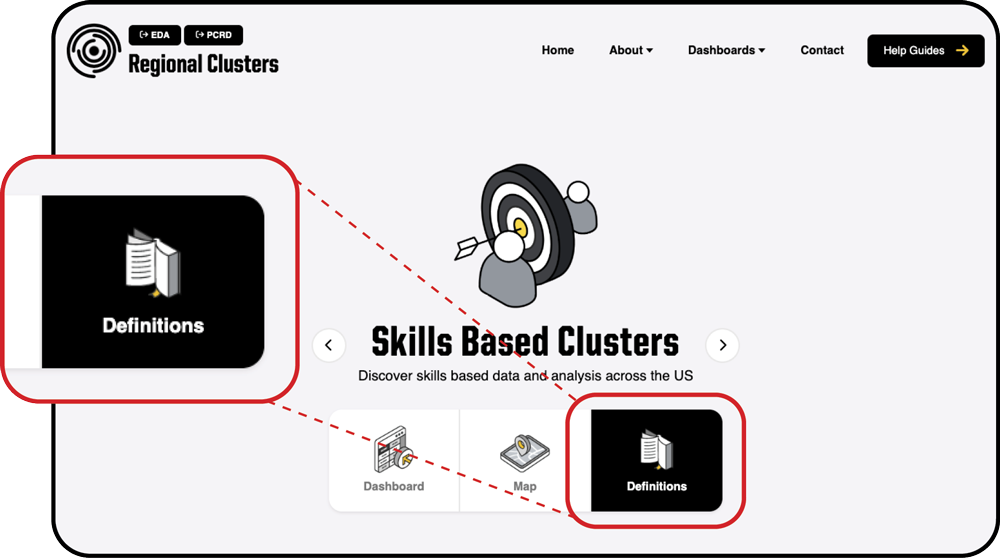
Access the cluster definitions from the Regional Clusters website. From the top menu, select the dashboard you want to view (for example, Skill Clusters). When the dashboard opens, select the book icon to display the definitions.
2. Selecting a Cluster
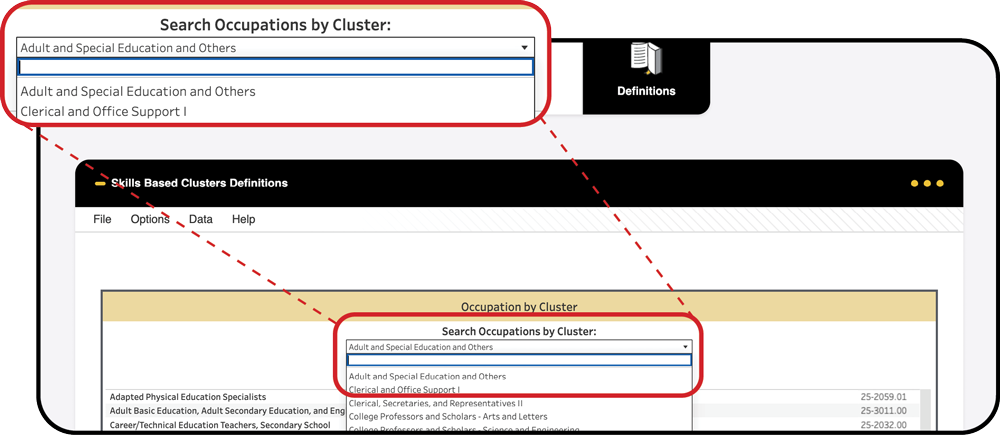
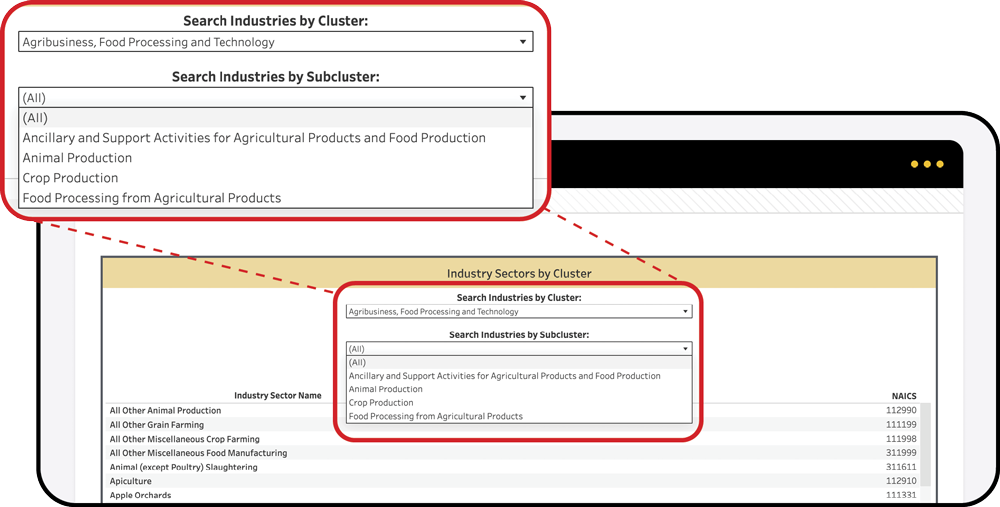
In the next section near the top of the dashboard, locate “Occupation by Cluster” or “Industry by Cluster.” Use the dropdown menu to select the cluster you are interested in. If you are using the Industry Cluster Dashboard, you can further refine your view by selecting a subcluster.
After you make your selections, a list of relevant occupations with their corresponding Standard Occupational Classification (SOC) codes, or a list of industries with their North American Industry Classification System (NAICS) codes, will appear below.
3. Searching by Occupation/Industry Sector
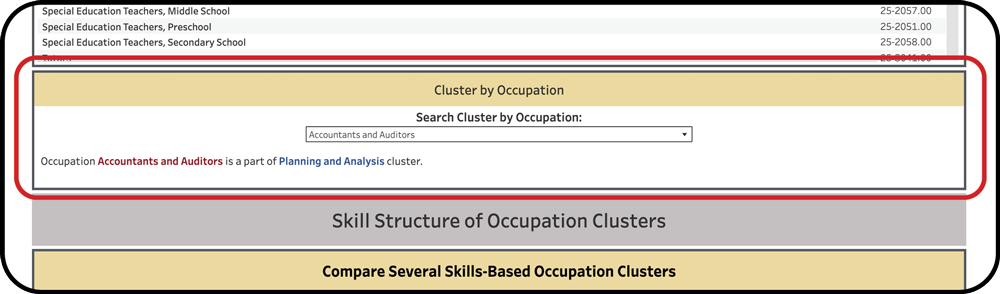
In the section titled “Cluster by Occupation,” choose an occupation from the dropdown menu. In the Industry Cluster Dashboard, go to the section titled “Cluster by Industry” and choose an industry sector from the dropdown menu.
After you make a selection in “Cluster by Occupation,” the text below will display the cluster that the chosen occupation belongs to. In the Industry Cluster Dashboard, the table below will display the cluster and subcluster that correspond to the selected industry sector. Note that industry clusters can overlap, so an industry sector may appear in several clusters.
4. Comparing Skill/Knowledge Structures
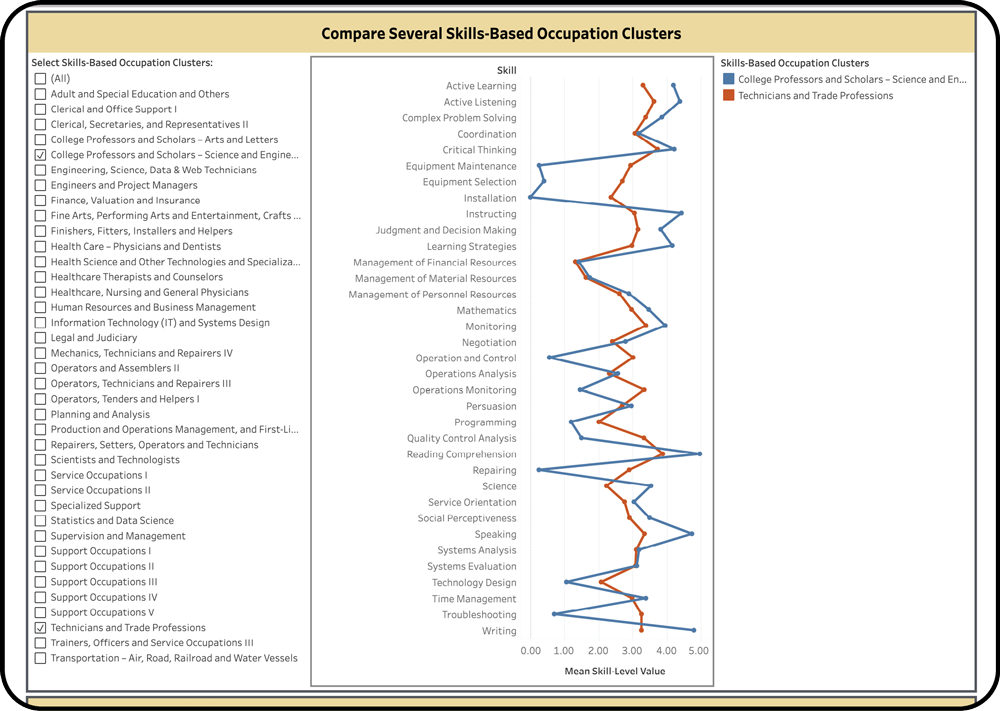
*Applies to Skills and Knowledge Clusters only
In the “Skill/Knowledge Structure of Occupation Cluster” section, you can compare multiple clusters across skill or knowledge areas. Select the clusters of interest in the left-hand panel.
The chart in the center will display each cluster’s “signature” lines, indicating differences in skill or knowledge significance levels (as defined by O*NET). Use the color legend on the right to identify each cluster’s line.
5. Exploring Skill/Knowledge Levels in a Cluster
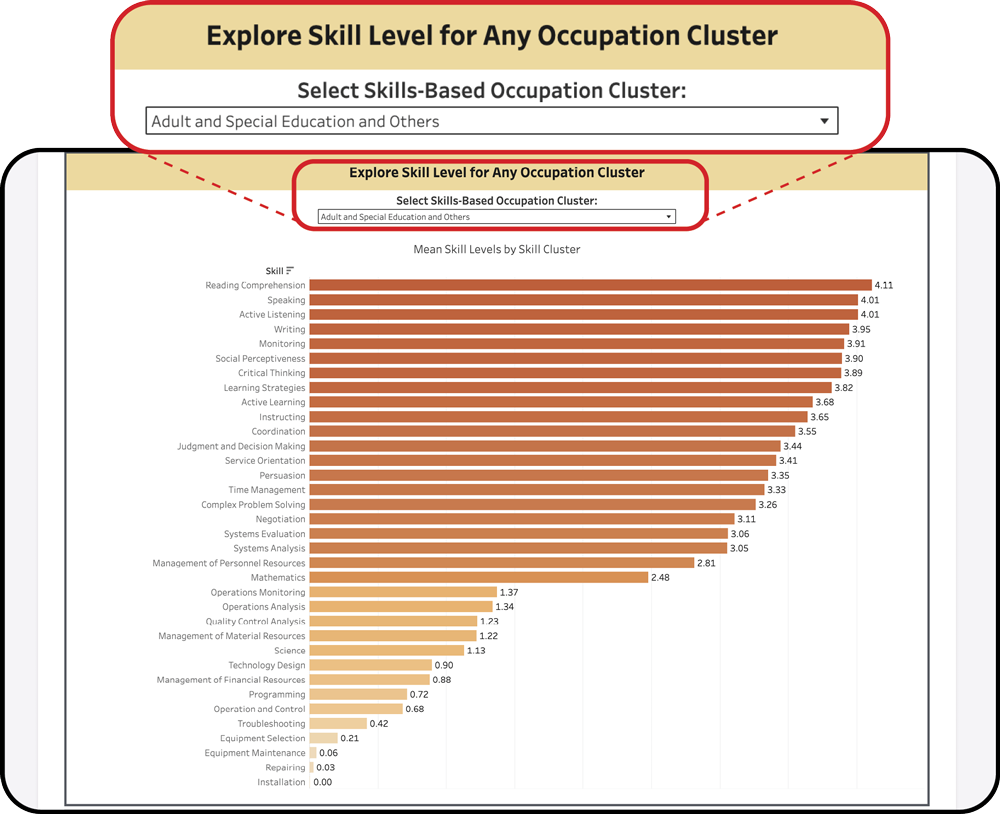
*Applies to Skills and Knowledge Clusters only
In the “Explore Skill/Occupation Level for Any Occupation Cluster” section, select a cluster using the dropdown menu. A bar chart will appear showing skills or knowledge areas ranked by their significance values, with the most significant at the top and the least significant at the bottom.
6. Troubleshooting
01
Dropdown does not show any clusters
Make sure you have selected the correct cluster type (Skills, Knowledge, or Industry) at the top of the dashboard before using the dropdown.
02
Occupation appears in an unexpected cluster
Each occupation is assigned to only one cluster. Cluster assignments are based on O*NET data. Refer to the methodology document for details on how classifications are determined.
03
Industry sector appears in multiple clusters
This is expected. Unlike occupation clusters, industry clusters can overlap. A single industry sector may belong to several clusters.
7. Get More Help
For assistance with cluster definitions, email regionalclusters@purdue.edu or fill out the form on our Contact Page.